 iPhone-Tricks.com
How To Turn Off Liquid Glass On iPhone (iOS 26)
With iOS 26, Apple introduced Liquid Glass, a new design language that makes menus, buttons and panels translucent. The Control Center, notifications and app backgrounds now let the content behind them shine through like glass. Not everyone likes the new look: text can be hard to read on transparent backgrounds, and on older iPhones the constant blur effects may also cost performance. If you want to turn off Liquid Glass on your iPhone, there are two effective ways to do it – we show you both.
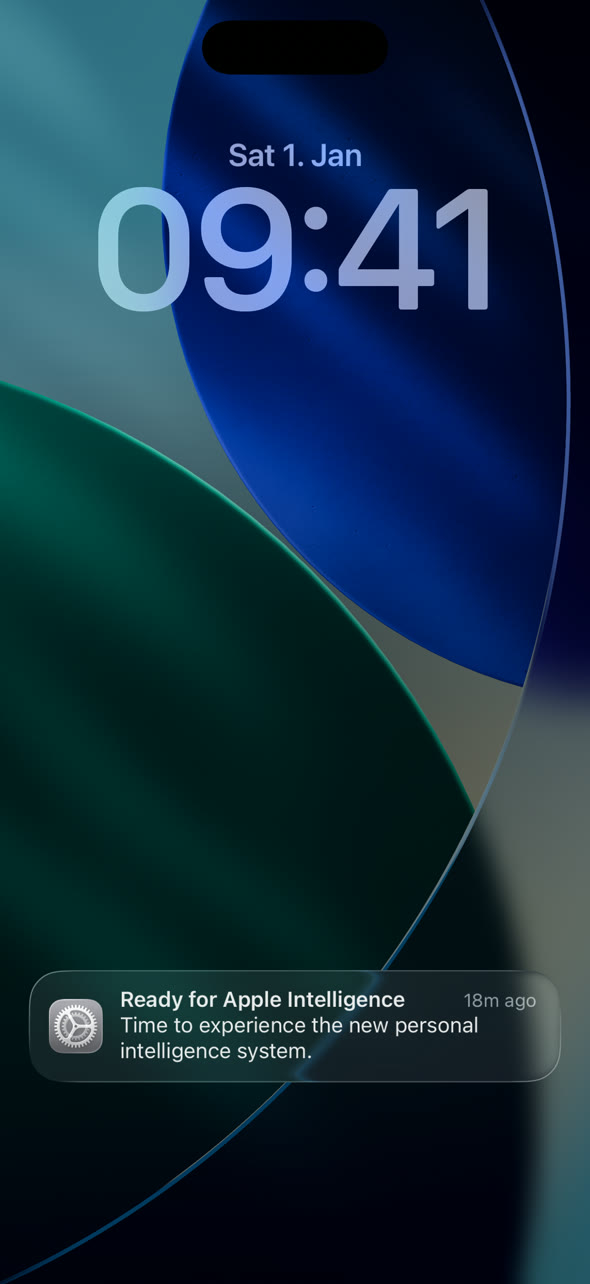
You cannot disable the design completely, but you can reduce the transparency so much that panels look almost solid again. The first method keeps the glassy style with a stronger tint, the second method removes most of the transparency system-wide.
Switch Liquid Glass from “Clear” to “Tinted”
Since iOS 26.1, Apple offers a built-in option to tone down Liquid Glass. Open the Settings app, go to “Display & Brightness” and tap “Liquid Glass”. There you can choose between “Clear” (the default, very transparent) and “Tinted”, which gives panels a noticeably more opaque look while keeping the glass effect.
This is the gentle option: the design stays intact, but contrast and readability improve. If that is still too transparent for you, use the next method.
Turn off Liquid Glass transparency with “Reduce Transparency”
For the maximum effect, use the accessibility setting that removes transparency and blur effects across the whole system:
Open the Settings app and tap “Accessibility”.
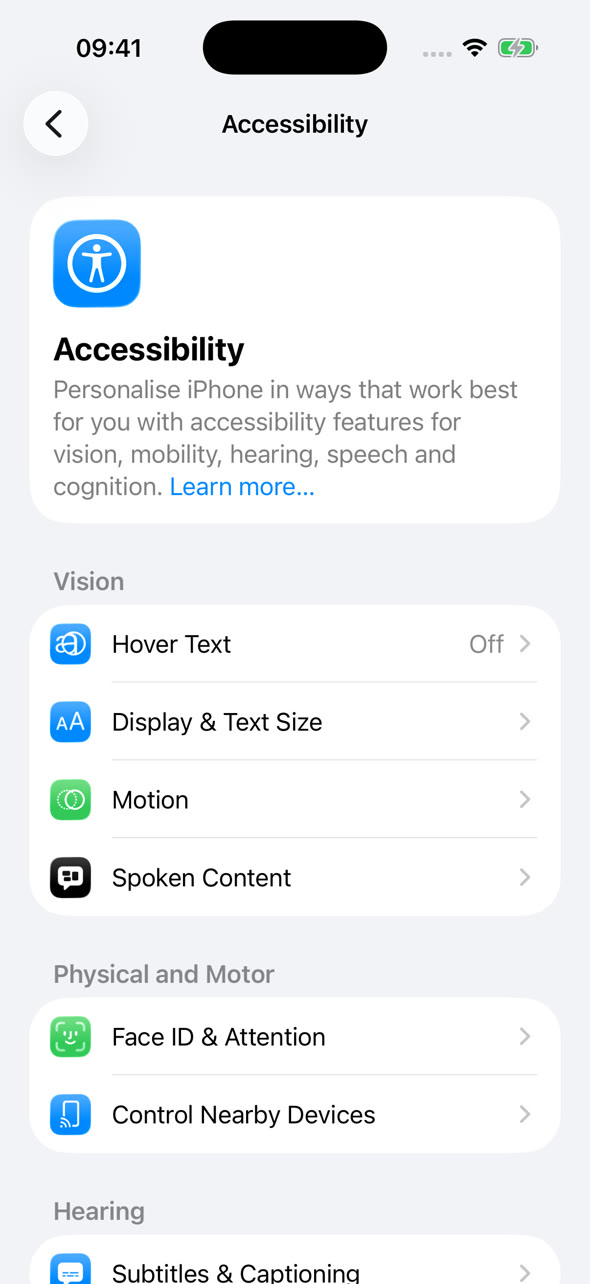
In the “Vision” section, tap “Display & Text Size”.
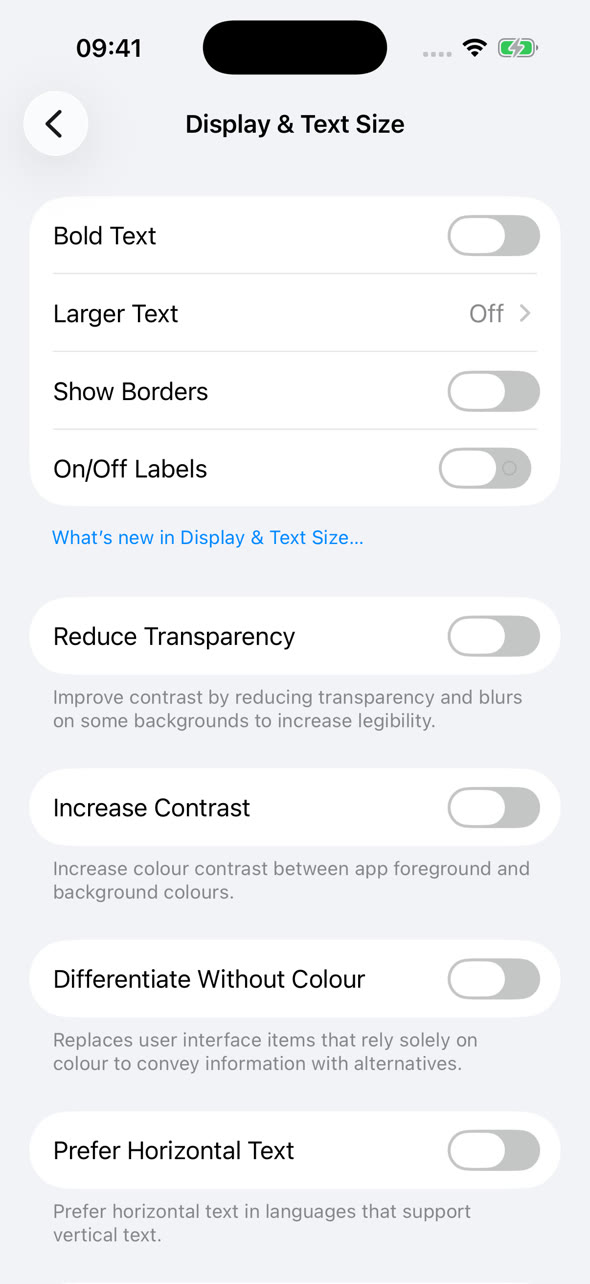
Now enable the switch for “Reduce Transparency”. The change takes effect immediately: the Control Center, Notification Center, folders and many other areas get solid, dark backgrounds instead of the see-through glass look. Text becomes much easier to read everywhere.
Tip: Right below this option you will find “Increase Contrast”, which further improves legibility by strengthening the contrast between foreground and background colours.
More tips against the transparent look
If you also find the animations of Liquid Glass distracting, you can reduce them via Settings > Accessibility > Motion > “Reduce Motion”. And if you mostly want a calmer, more personal Home Screen and Lock Screen to go with your new solid panels, take a look at our guide on how to customize the iPhone Lock Screen.
To undo everything, simply switch “Reduce Transparency” off again or set Liquid Glass back to “Clear” – your iPhone will immediately return to the original iOS 26 look.