 iPhone-Tricks.com
How To Set App Limits On iPhone With Screen Time
Do you catch yourself scrolling through Instagram, TikTok or YouTube far longer than planned? With Screen Time, iOS has a built-in tool that helps you get such habits under control: you can set App Limits on your iPhone and restrict how long certain apps or whole app categories may be used per day. It takes less than two minutes to set up – and it is also the easiest way for parents to limit app usage on a child’s iPhone.
App Limits work on any iPhone with a current iOS version. You do not need an extra app, an Apple Account or a subscription – everything is already on board.
Turn on Screen Time
If you have never used Screen Time before, you have to activate it once. Open the Settings app, scroll down and tap “Screen Time”. Then tap “App & Website Activity” and choose “Turn on App & Website Activity”.
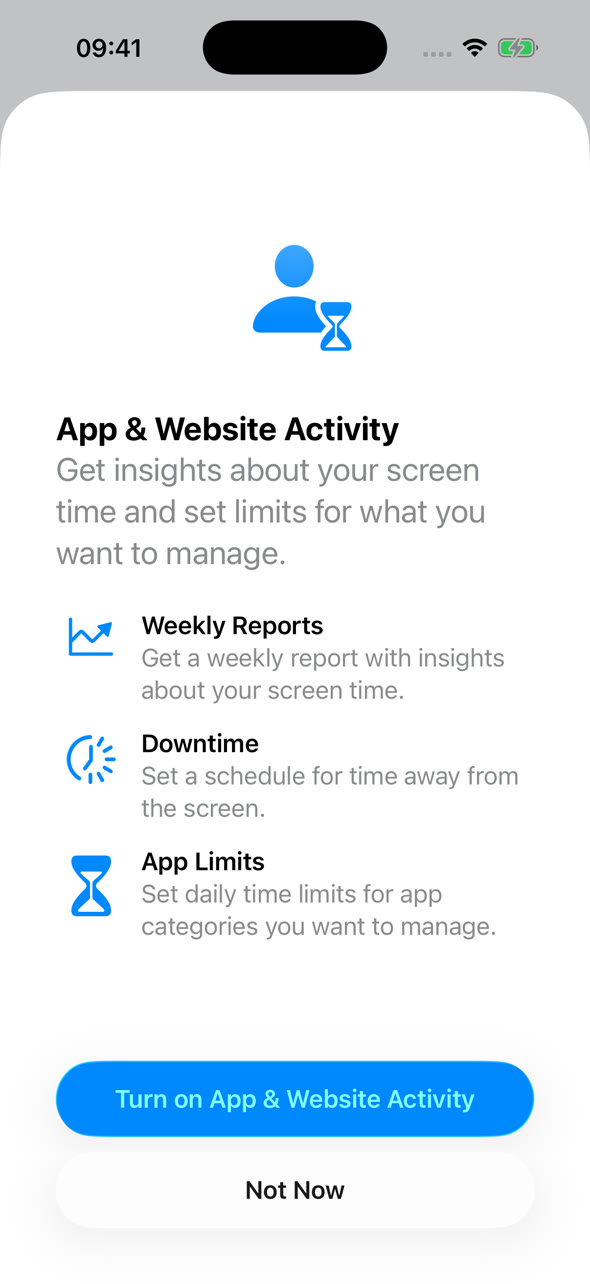
From now on, your iPhone records how long you use each app and shows a weekly report. The Screen Time menu now displays additional options such as “Downtime”, “App Limits” and “Always Allowed”.
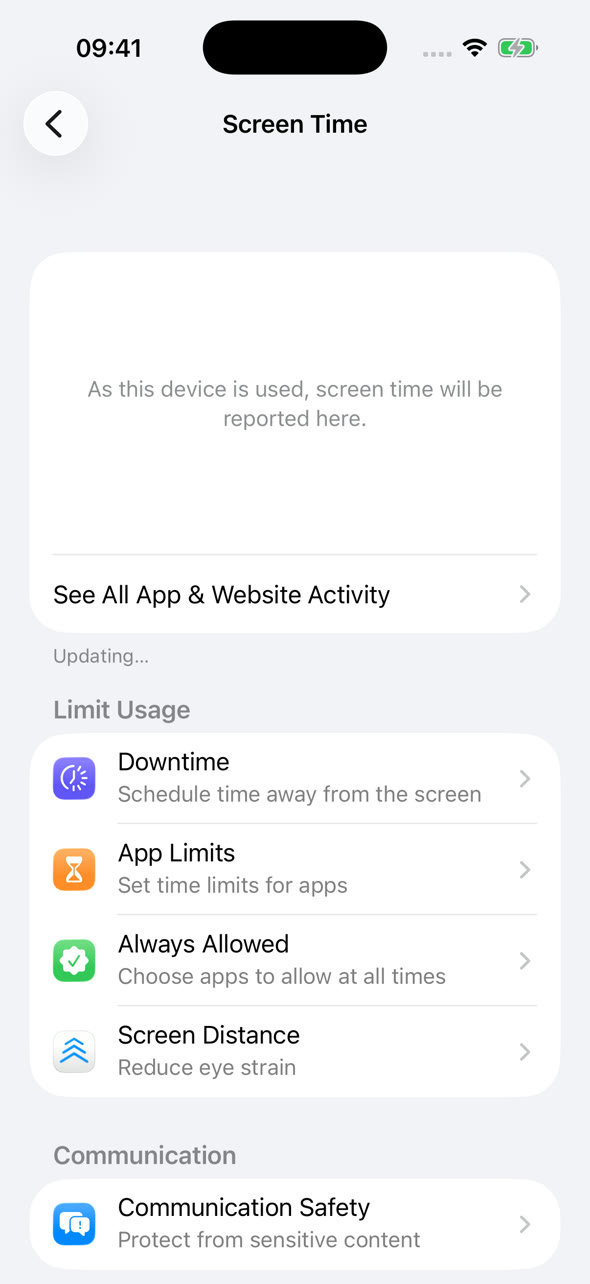
Set an App Limit
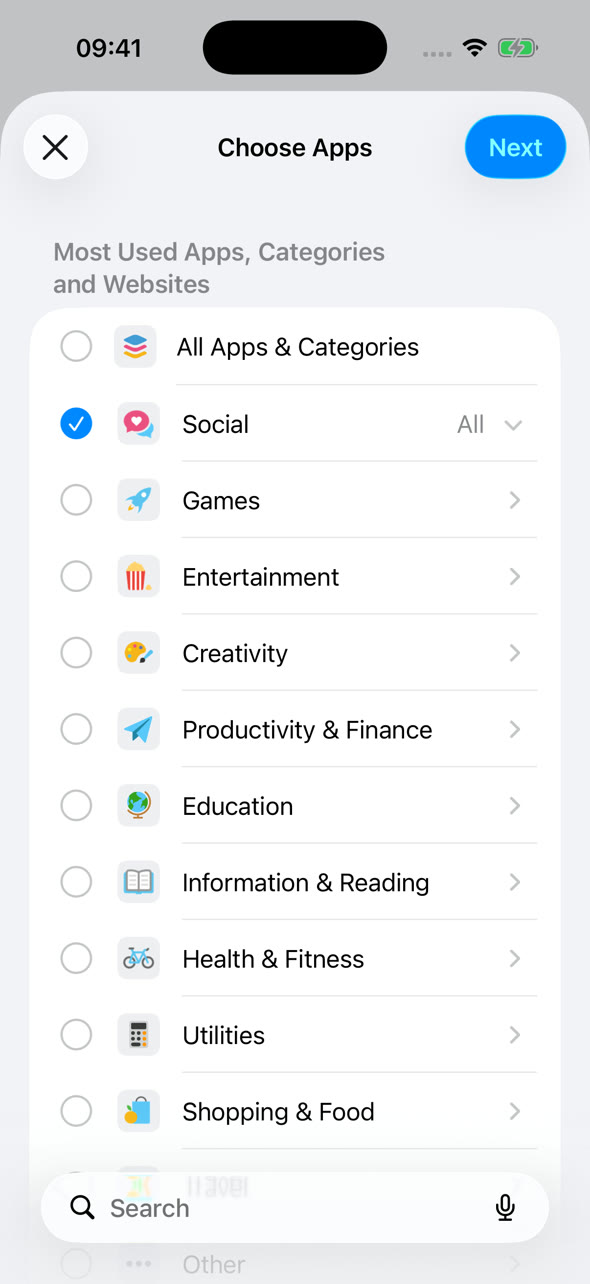
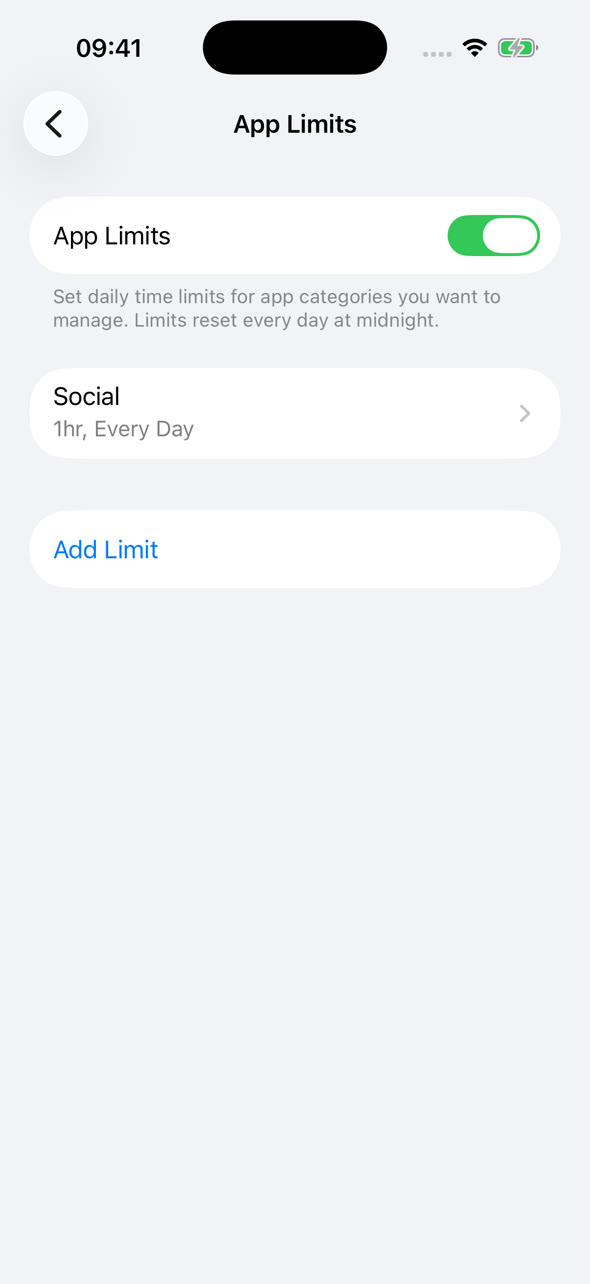
Tap “App Limits” in the Screen Time menu, then tap “Add Limit”. A list opens with all app categories – for example Social, Games or Entertainment. Tick the category you want to restrict. With the arrow on the right you can also expand a category and pick individual apps instead. Then tap “Next” at the top right.
Now choose the daily time budget with the hour and minute wheels – for example 1 hour. The limit applies every day by default; via “Customise Days” you can set different budgets for individual weekdays, such as more time at the weekend. Confirm with the checkmark at the top right.
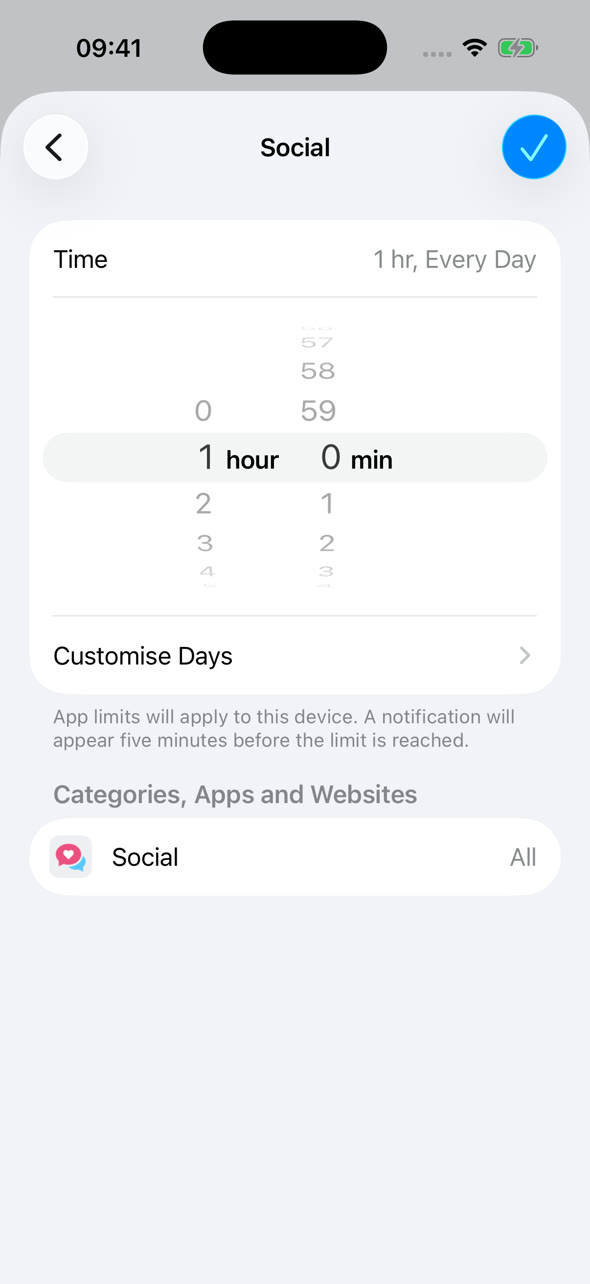
Done! Your new limit now appears in the App Limits list and resets every day at midnight.
What happens when the limit is reached?
Five minutes before the time is up, your iPhone shows a notification. When the limit is reached, the app icon turns grey and a “Time Limit” screen appears instead of the app content. You can still tap “Ignore Limit” to continue – App Limits are a friendly nudge, not a hard lock. If you want a stricter setup, enable “Block at End of Limit” when creating the limit.
More useful Screen Time options
“Downtime” blocks almost all apps during a fixed schedule – ideal for the evening or the night. With “Always Allowed” you define exceptions that remain available even during Downtime or after a limit, for example Phone or Messages. And parents should secure everything with “Lock Screen Time Settings”: this protects the settings with a separate Screen Time passcode, so children cannot simply extend their own limits.
By the way: a tidier Home Screen also helps against distraction. Our guide on customizing the iPhone Lock Screen shows how to put useful widgets in the spotlight instead of attention-grabbing apps.