 iPhone-Tricks.com
How To Customize The iPhone Lock Screen: Wallpaper, Widgets & Clock
With every major iOS update, Apple expands the ways you can customize the iPhone Lock Screen. What used to be a static picture with a clock is now a fully personal space: your own wallpaper, a clock with a font and colour of your choice, and widgets that show useful information at a glance. In this step-by-step guide, we show you how to make the iPhone Lock Screen your own.
All you need is an iPhone running a current iOS version – the feature was introduced with iOS 16 and works the same way in iOS 26. The whole setup takes less than two minutes.
Open the Lock Screen editor
Wake your iPhone so that the Lock Screen is visible, but do not unlock it yet. Now touch and hold anywhere on the Lock Screen until the wallpaper gallery appears. You will see all your saved Lock Screens as large cards.
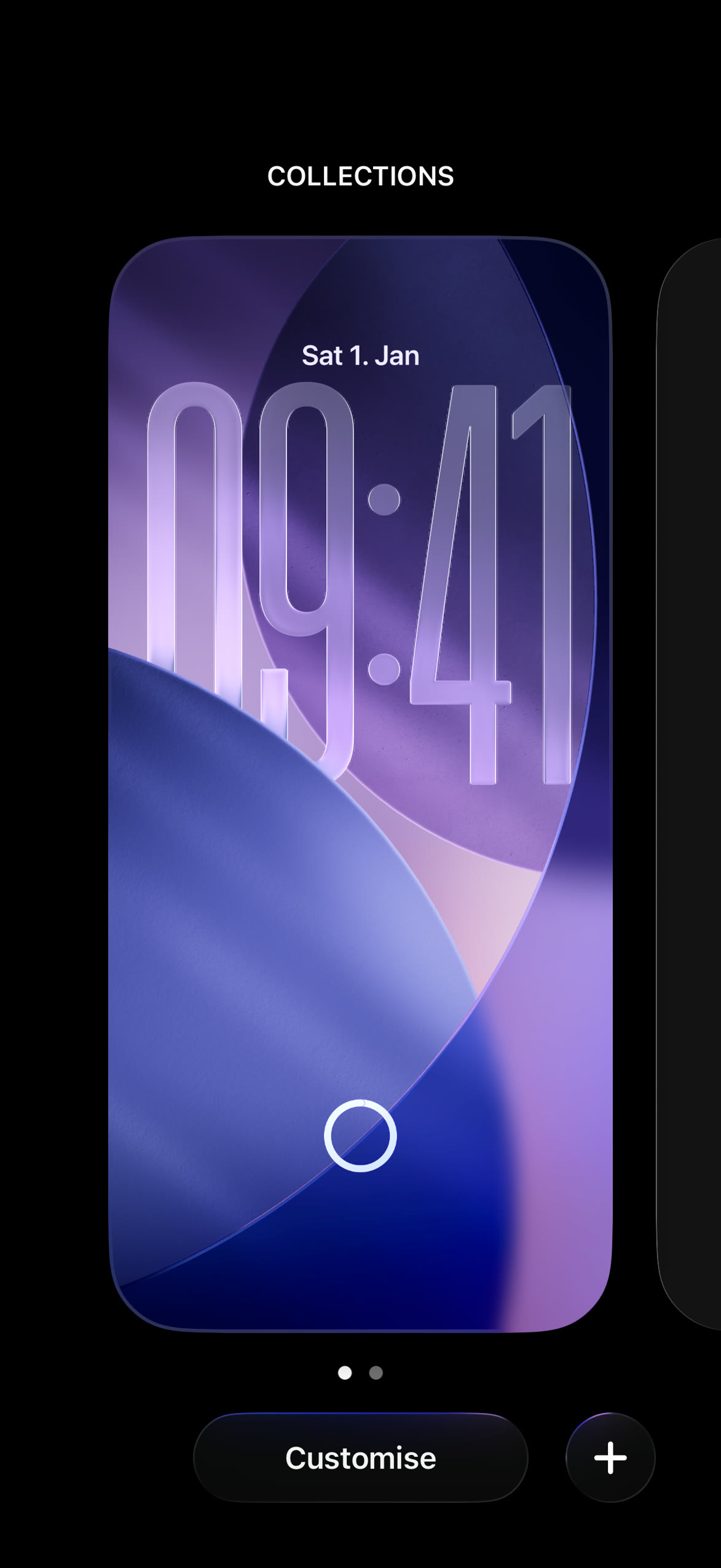
Swipe left or right to pick the Lock Screen you want to change, then tap “Customise” below the preview to open the editor. If you want to start from scratch instead, tap the “+” button to add a new wallpaper first.
Change the clock font and colour
Inside the editor, tap the clock to open the “Font & Colour” panel at the bottom of the screen. Swipe through the font styles at the top and pick one you like. Below that, you find the colour palette: choose one of the preset colours or tap the rainbow circle to select any custom colour with a slider. In iOS 26 you can also switch between the “Glass” and “Solid” look for the clock.
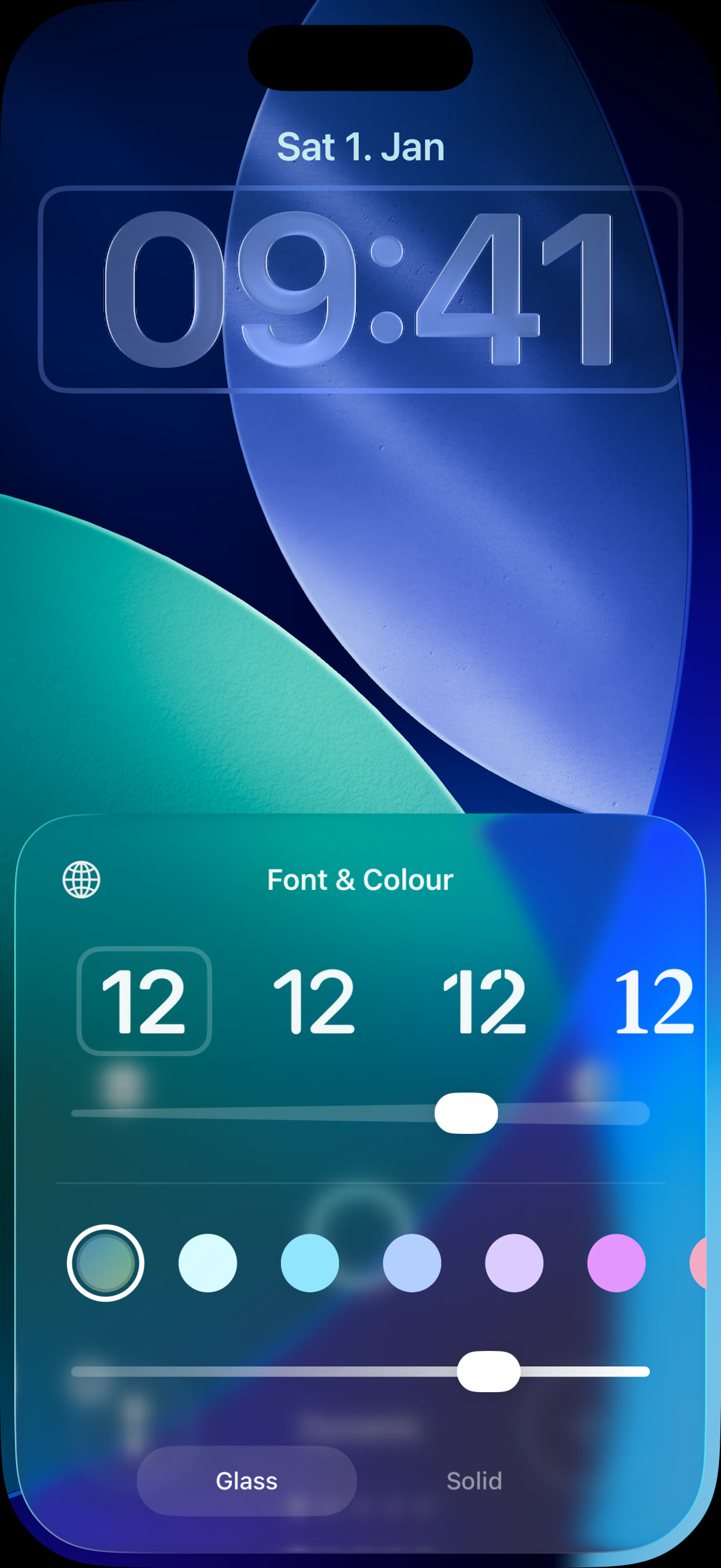
Tap anywhere above the panel to close it again.
Add widgets to the Lock Screen
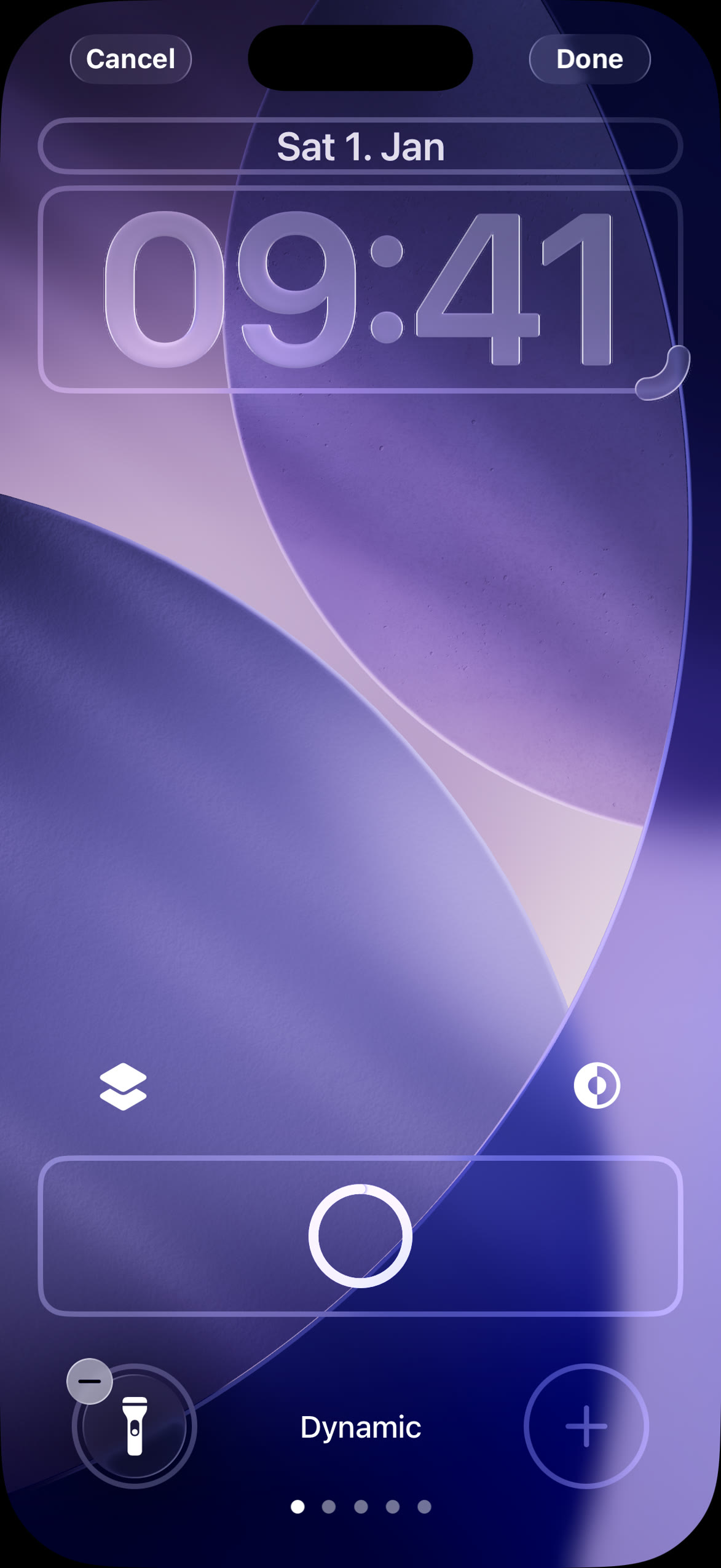
To add widgets to the iPhone Lock Screen, tap “Add Widget” in the box below the clock. A gallery opens with all available widgets, sorted by app – for example Batteries, Calendar, Fitness or Weather.
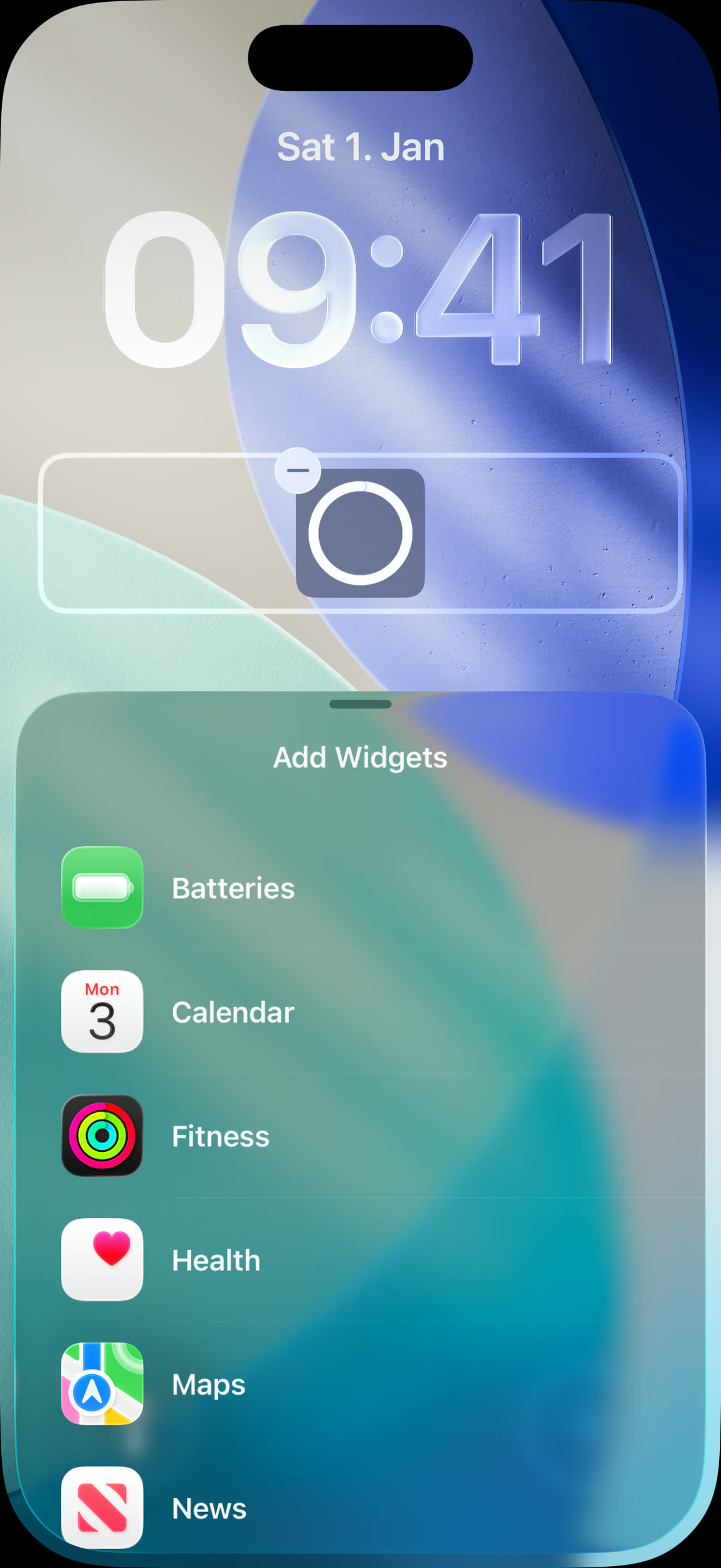
Tap an app to see its widget styles, then tap the style you want. The widget is placed in the widget area right away. We chose the round Batteries widget, which shows the current charge level of the iPhone and connected devices such as AirPods or an Apple Watch.
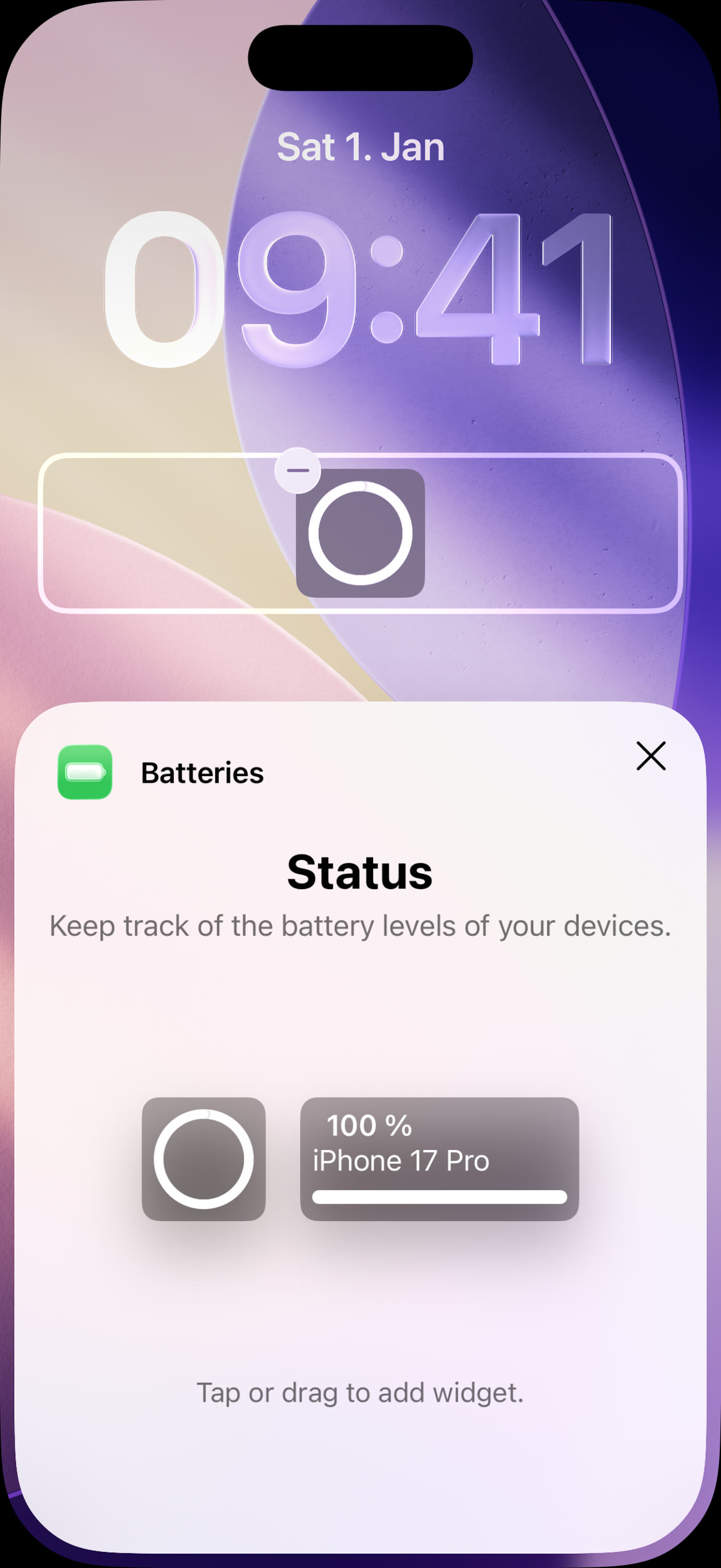
Close the widget gallery by tapping the wallpaper above the panel. By the way: you can add the battery percentage to other places, too – here is how to add the battery widget to your Home Screen.
Save your new Lock Screen
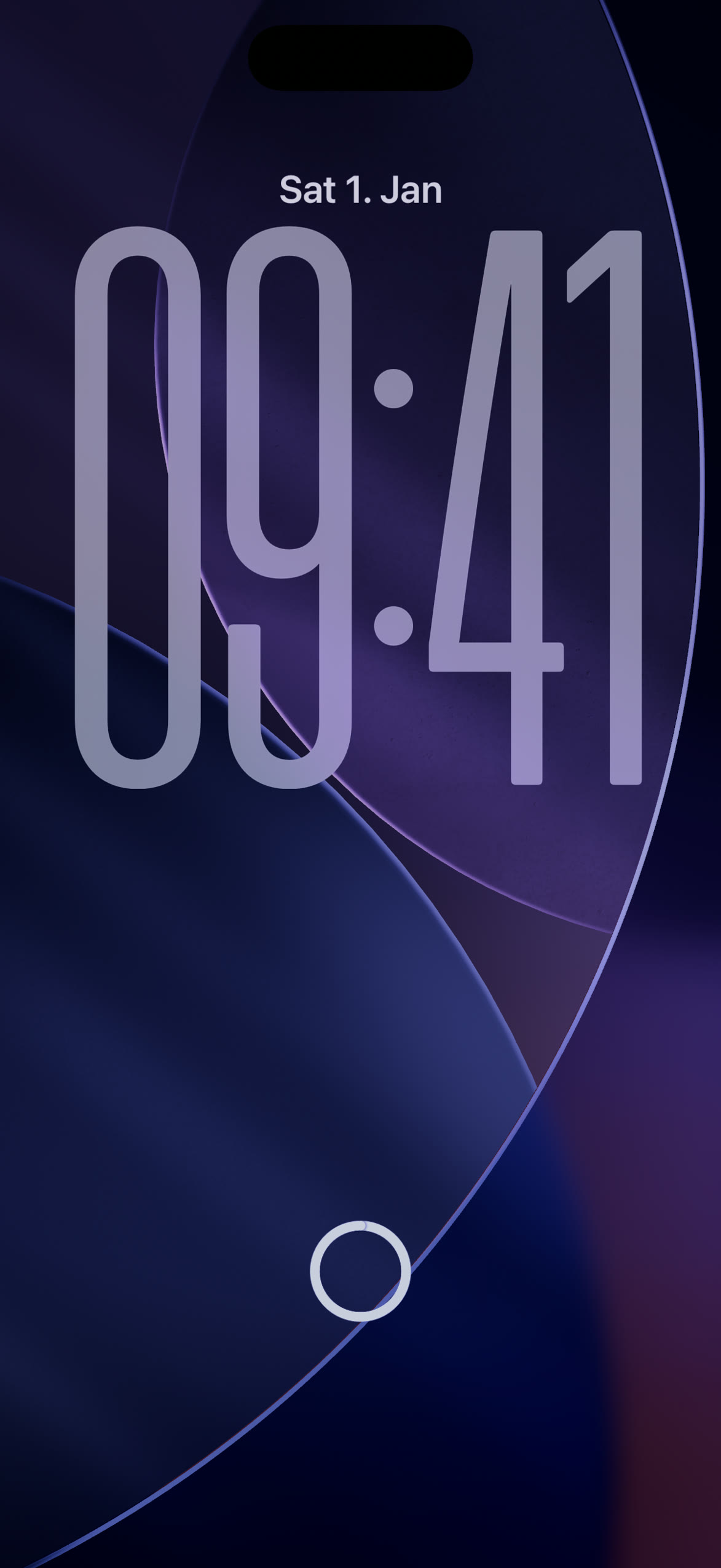
Happy with the result? Tap “Done” in the top-right corner of the editor to save everything. Your customized Lock Screen is active immediately – wallpaper, clock style and widgets included.
More ways to personalize your Lock Screen
If you want to go further, check out our other guides: you can show the current weather on the iPhone Lock Screen or even use a video as your Lock Screen wallpaper. And since you can save multiple Lock Screens, it is easy to switch between different looks whenever you like.